LinkedIn includes your connections only in its larger data archive, which takes up to a day to prepare.
1. Request your archive
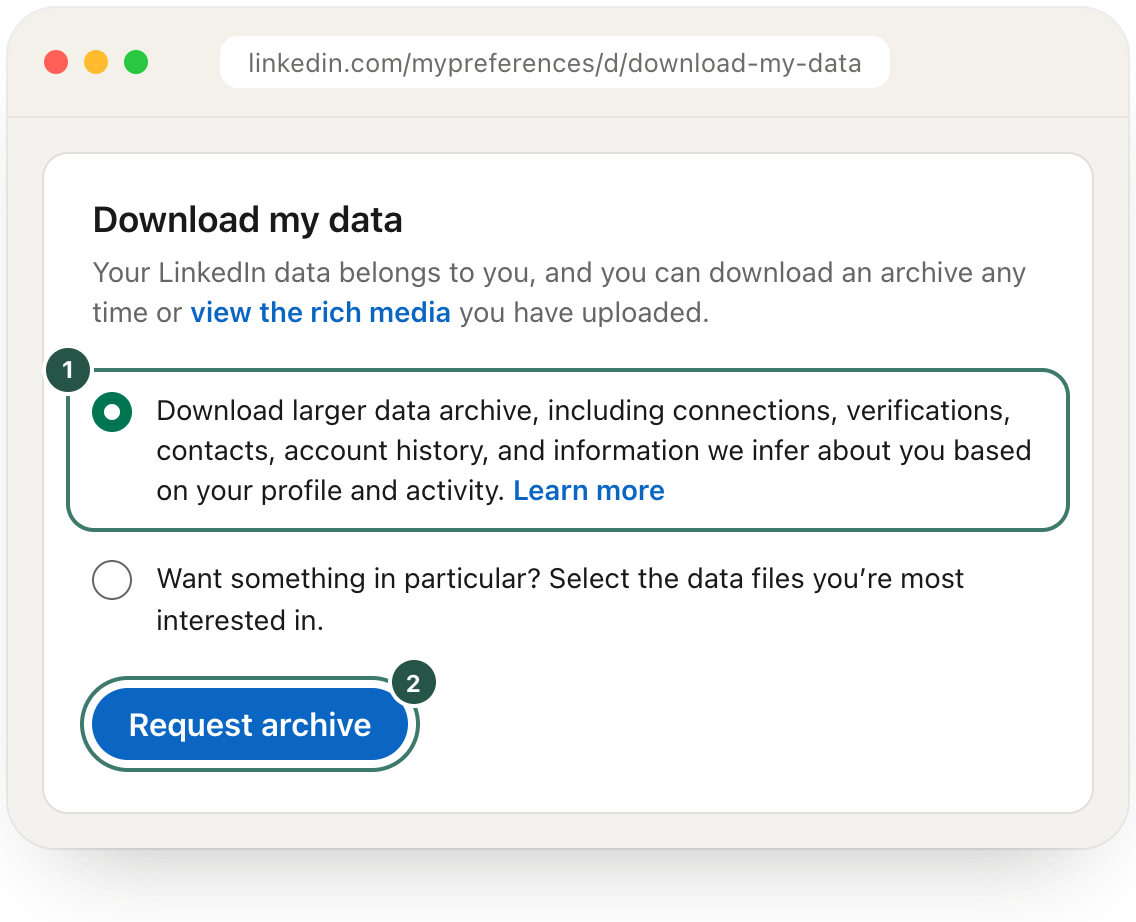
Sign in to LinkedIn and open Download my data. You can also find it under Me → Settings & Privacy → Data privacy → Download your data.
Select Download larger data archive, then Request archive.
2. Wait for LinkedIn's second email
LinkedIn emails you twice. The second email is for the Complete file, usually within a day.
3. Download the Complete file
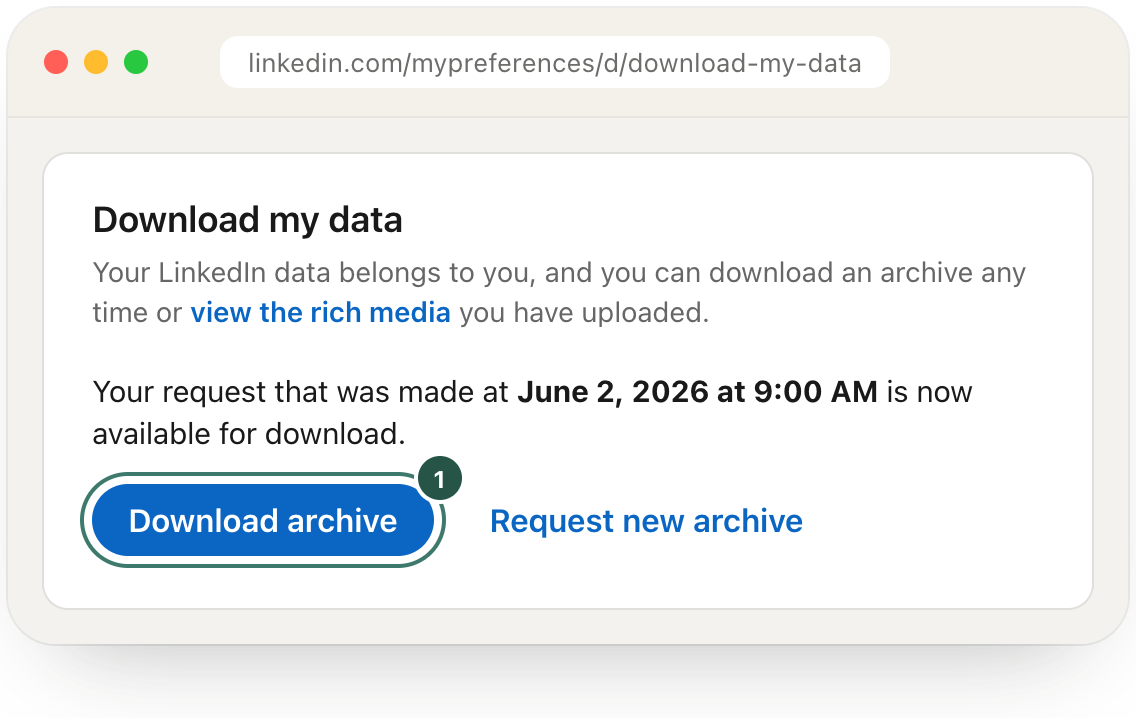
Open the link in that email and select Download archive. The file is named Complete_LinkedInDataExport_<date>.zip. You don't need to unzip it.
4. Import it into Havilo
The first time you open Havilo, drop the ZIP onto the page. To import later, open Settings → Data & Import and select Import connections.
Drop in the ZIP, or the Connections.csv inside it. Your connections go into My Network, and you choose which workspaces can use them.